Choose a real review you have permission to feature, keep the quote faithful to its meaning, enter it in the Review Card Generator, select a suitable layout, check attribution and disclosures, then export a PNG for your post.
Before you design: verify the review
A polished testimonial image is still an advertisement when a brand publishes it. Start with source and consent: confirm the review came from a real customer, keep a record of the original, and make sure any edit does not change what the person said.
The U.S. Federal Trade Commission says testimonials used in advertising must reflect real experiences and that incentives or material relationships may need clear disclosure. Review the FTC’s consumer reviews and testimonials guidance and the rules that apply where you publish. This guide is a design workflow, not legal advice.
Turn the review into a post in six steps
1. Pick one specific outcome
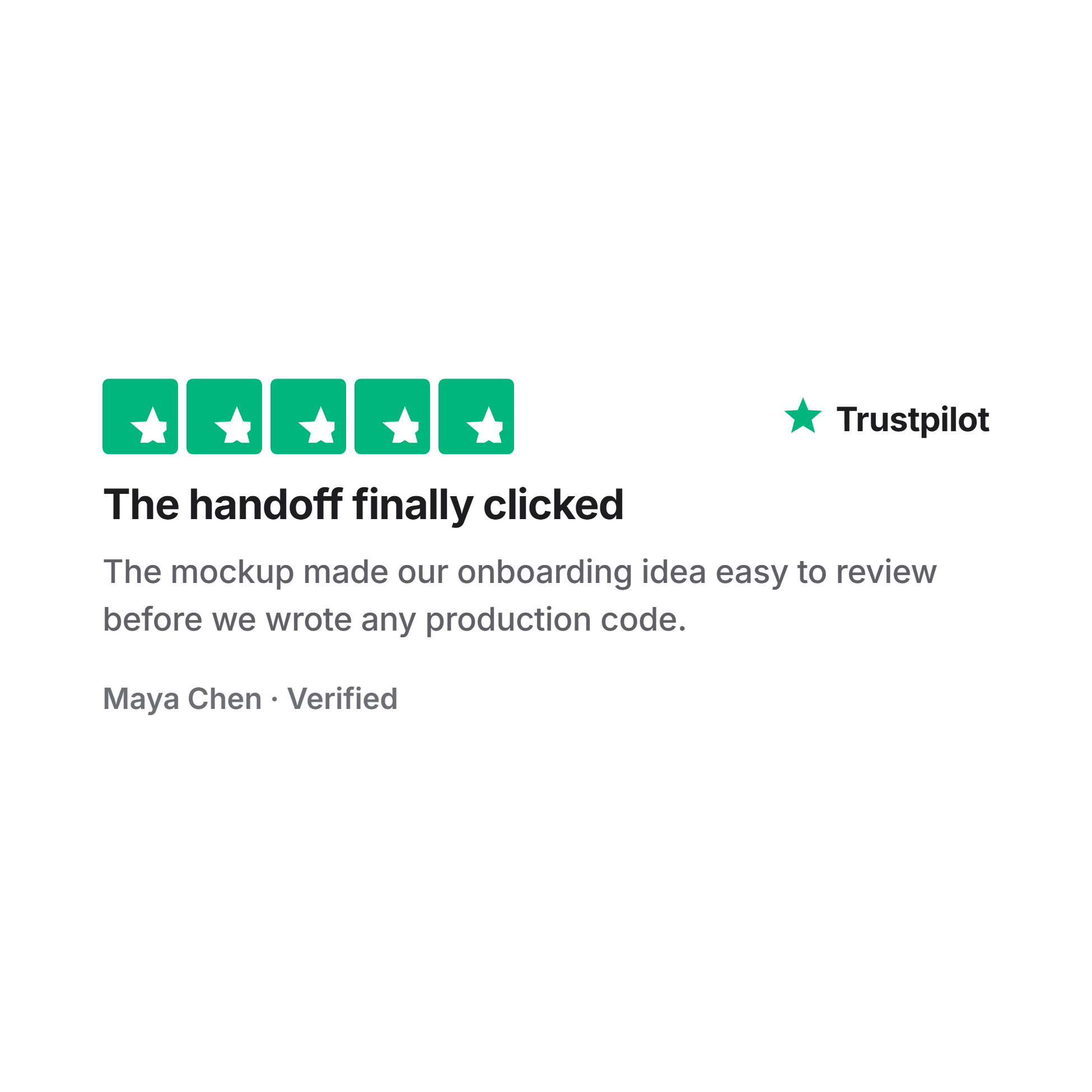
“The handoff finally clicked” is stronger than a long paragraph of general praise. Select a sentence that contains a concrete before-and-after, useful detail, or resolved doubt.
2. Preserve the customer’s meaning
Fixing a typo or shortening an irrelevant clause may be reasonable, but do not upgrade “helpful” into “life-changing.” If you excerpt a longer review, keep the full original available and use an ellipsis only where it does not create a misleading impression.
3. Choose the right card style
Open the review card editor. It includes App Store, Google, Trustpilot, Testimonial, Amazon, and Rating Badge visual styles. Treat these as layout choices; do not imply that a review came from a platform when it did not.
4. Set attribution and rating accurately
Add the approved customer name or anonymous label, the real review title and body, and the correct star rating. Half-star settings are available when the source rating supports them.
5. Tune for mobile reading
Pick a light or dark theme, adjust the accent or star color, and preview the card at the size it will appear in a feed. Shorten supporting copy around the card before shrinking the customer’s quote.
6. Export, caption, and disclose
Download the PNG and write a caption that explains the product context. If the reviewer received payment, a discount, a free product, or another benefit, add a clear disclosure close to the endorsement.
Match the style to the source and placement
| Card style | Best fit | Accuracy check |
|---|---|---|
| Testimonial | Website, case-study, or social quote | Use approved attribution |
| Google / Trustpilot | A review sourced from that platform | Keep platform and rating truthful |
| App Store / Amazon | A review from the matching listing | Do not invent purchase context |
| Rating Badge | Aggregate score or campaign tile | State sample and source clearly |
A simple social-post structure
- Lead: name the customer problem in one line.
- Proof: place the review card directly underneath.
- Context: explain which feature or workflow produced the result.
- Disclosure: state any material connection clearly.
- Action: offer one relevant next step.
The screenshot in this guide uses a fictional review to demonstrate the editor. Do not publish fictional praise as customer proof or recreate a platform review that never existed.
Frequently asked questions
Can I shorten a customer review?
Only if the shortened version preserves the original meaning. Keep the source record and obtain approval when attribution or context changes.
Which image style should I use?
Use the generic Testimonial style for most owned-channel quotes. Use a platform-style card only when the source and framing are accurate.
Can I use an anonymous name?
Yes, when that matches your permission agreement and does not create a false identity. A role or initials may supply useful context.
Does the tool collect customer reviews?
No. It formats text you provide into a static visual and exports the result as PNG.