Open the X / Twitter Post Generator, enter a fictional name, handle, post, date, and metrics, add an optional quote card or comments, preview the result, and export it as PNG.
Why use a tweet mockup instead of a live-post screenshot?
A mockup helps a team review an idea before anyone publishes it. It also gives a presentation or storyboard a consistent layout without using a real account or revealing private analytics. The key distinction is context: the image should communicate “concept” or “example,” not pass as evidence that a real person posted it.
Create the X post mockup step by step
1. Start with the X post template
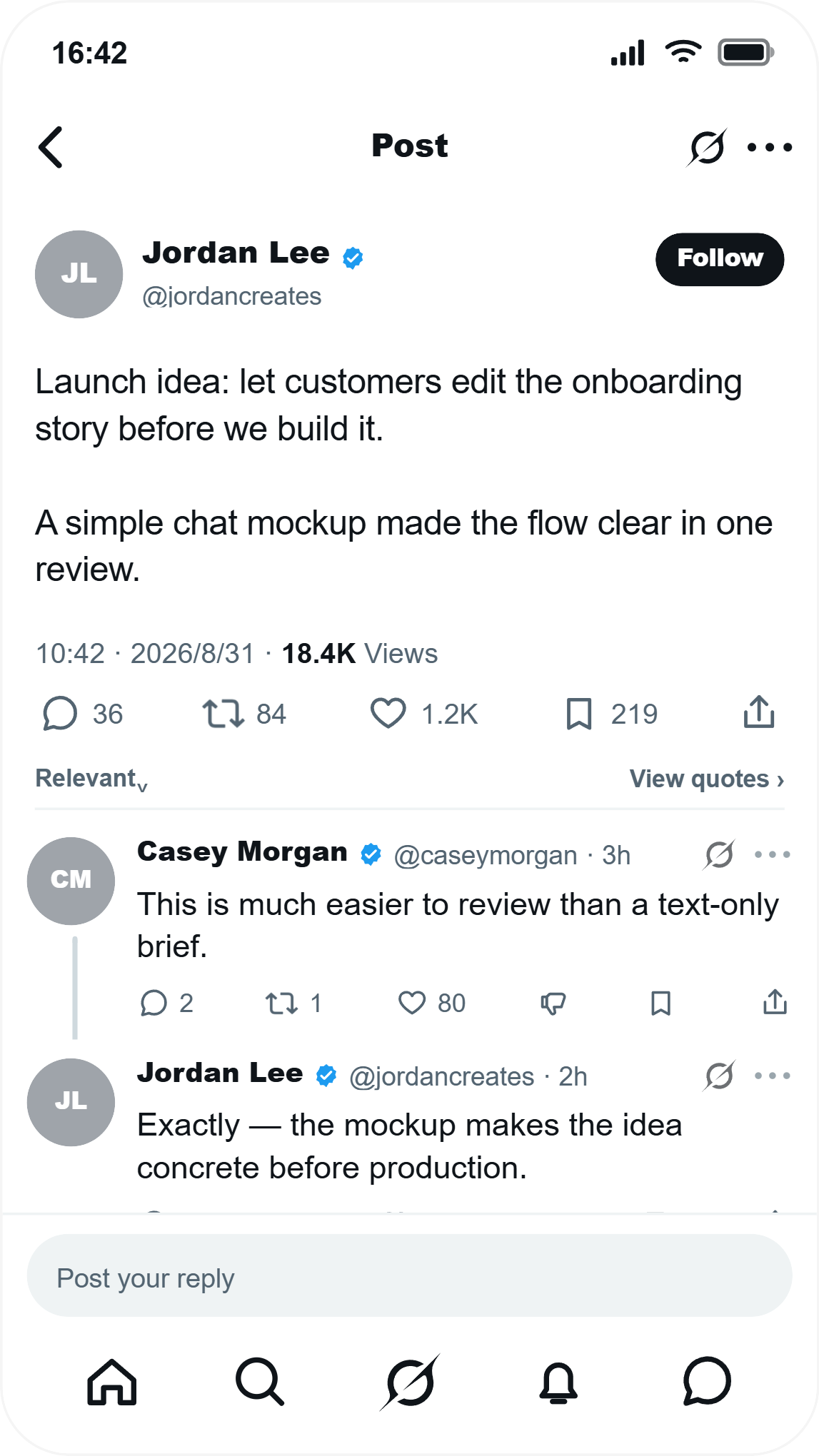
Open the X post editor. The preview includes the main post, profile area, published date and time, view count, engagement row, and an optional comment thread.
2. Build a fictional profile
Choose a display name and handle that do not belong to a real person. Add a fictional avatar if it helps the presentation. Use the verified badge and Follow button only when those details matter to the interface you are demonstrating.
3. Write the post for the frame
Lead with the single statement the audience must understand. Short paragraphs and one deliberate line break usually read better than a dense block. If a linked idea needs more context, turn on the quote-post card instead of forcing everything into the main post.
4. Set plausible metadata
Edit the time, date, views, replies, reposts, likes, and bookmarks. Do not inflate every metric for drama. A product concept often needs only enough metadata to make the interface legible.
5. Add comments only when they advance the story
A comment can surface a question and a threaded reply can resolve it. That creates a compact problem-and-answer sequence for a slide. The generator supports multiple comments and nested replies, so keep the strongest exchange and remove filler.
6. Export the complete frame
Choose a height that fits the main post and comments, review line wrapping, then download the mockup as a PNG. For a presentation, place the exported image beside a short caption such as “Illustrative concept—fictional account.”
Choose the detail level for the job
| Use case | Keep | Usually remove |
|---|---|---|
| Presentation concept | Post, date, one key metric | Long comment threads |
| Product storyboard | Post plus one question and reply | Decorative metrics |
| Social graphic | Profile, post, clear framing label | Anything too small to read on mobile |
Use fictional identities and make the context clear. Never use a mock tweet to invent a real endorsement, statement, threat, admission, or news event.
Good uses for a tweet template
Use it to compare headline options, prototype a launch announcement, storyboard a reply sequence, or show how a social feature might look inside a pitch. If the story works better as a vertical conversation, use the chat screenshot story workflow. For genuine customer praise, follow the review-to-social guide.
Frequently asked questions
Can I add a quote post?
Yes. The editor includes an optional quote card with its own fictional profile and post text.
Can the mockup include comments and replies?
Yes. Add comments below the post and attach a threaded reply when the scene needs one.
Can I edit the engagement numbers?
Yes. Replies, reposts, likes, bookmarks, and views are editable display values.
Does the generator publish to X?
No. It creates a static image only and does not connect to or publish on a real X account.